AWS DataSync Migration: Move On-Prem File Servers to S3
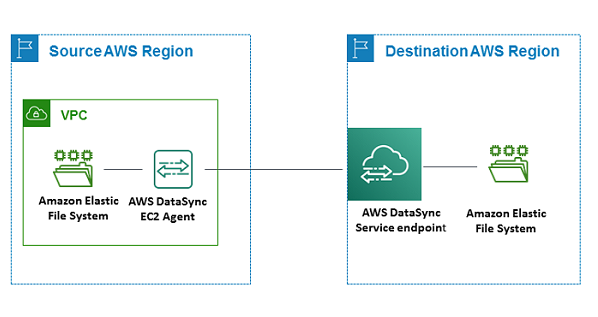
To run an AWS DataSync migration of on-premises file data, deploy a DataSync agent VM next to your storage, create a source location (your NFS or SMB share) and a destination location (S3, EFS, or FSx), run one full task to seed the data, then run incremental CHANGED tasks until the delta is small, verify, and do a final sync during your cutover window. The whole flow is a few CLI calls, but the choices you make at task creation are the ones that bite later, so get those right before you move a byte.
This is for teams migrating file servers, home directories, media libraries, or a data lake landing zone off on-premises NAS. It is not about databases (use DMS for those) and not about whole-server rehosts (that is MGN). DataSync moves files and objects, preserves their metadata, and verifies integrity as it goes.
Check these before you change anything
The failures I see are almost never DataSync itself. They are network, permissions, and object count, discovered mid-migration.
Network path and ports. The agent needs outbound access to the DataSync service endpoints and to your source storage. Decide early whether traffic goes over the public internet, a VPC endpoint, or Direct Connect, because that decision shapes both cost and your security review. When you transfer between AWS storage services in the same account, no agent is required and the data stays inside the AWS network, but an on-premises source always needs an agent reading from your NAS.
Object count, not just data size. A terabyte of large media files behaves completely differently from a terabyte of millions of tiny files, because DataSync has to list and prepare every object. This is the single biggest driver of task mode choice, so count your files before you size anything.
Storage class on the destination. If you are landing data straight into an archival S3 class, know that DataSync issues HEAD requests to read object metadata every time a task runs, and those requests are charged even when nothing moves. On Glacier classes those per-object requests are more expensive, and each Glacier storage class carries a minimum storage duration, so deleting or overwriting an object early still bills you for the remainder. Land in S3 Standard, then transition with a lifecycle rule after cutover unless you have a specific reason not to.
IAM. Enhanced mode needs the iam:CreateServiceLinkedRole permission on the role you run DataSync with, and the destination bucket needs a role DataSync can assume to write. Sort these out before the maintenance window, not during it.
If you want the network and identity foundations laid down properly before any data moves, that is exactly the work in our cloud architecture and landing zone service.
Deploy the agent and create the locations
The agent is a virtual machine appliance DataSync uses to read from and write to your storage during a transfer. Deploy it as close to the source as you can.
You can run it on VMware ESXi 7.0 or 8.0, on KVM, or on Microsoft Hyper-V, and the agent ships as a generation 1 VM. For KVM, DataSync is tested on CentOS/RHEL 7 and 8 and Ubuntu 16.04 and 18.04 LTS. There is also an EC2 AMI, but AWS is explicit that an EC2 agent is not recommended for on-premises storage because of the added network latency; deploy the VM in your data center instead. Take that seriously: an agent pulling from your NAS over a WAN link will crawl.
Size the agent for your object count. AWS notes the Basic mode agent guidelines cover up to roughly 20 million files, objects, or directories, and you may need more resources depending on directory structure and metadata size.
Once the agent is activated, create the two locations and the task. In the CLI, the destination and source are ARNs you get back from create-location-* calls, and the task ties them together:
aws datasync create-task \
  --source-location-arn "arn:aws:datasync:us-east-1:111122223333:location/loc-src" \
  --destination-location-arn "arn:aws:datasync:us-east-1:111122223333:location/loc-dst" \
  --name "fileserver-migration" \
  --options VerifyMode=ONLY_FILES_TRANSFERRED,TransferMode=CHANGED
Enhanced vs Basic task mode
This choice is permanent: you cannot change the task mode after the task is created, so decide deliberately.
Enhanced mode transfers virtually unlimited numbers of files by listing, preparing, transferring, and verifying in parallel, while Basic mode does those steps sequentially and is slower for most workloads. For an on-premises NFS or SMB source, Enhanced mode requires an Enhanced mode agent. The catch is compatibility: some destinations force Basic mode. AWS states that a transfer to or from Amazon FSx for Windows File Server requires Basic mode.
| Factor | Enhanced mode | Basic mode |
|---|---|---|
| Processing | Parallel list/prepare/transfer/verify | Sequential |
| File scale | Virtually unlimited | Guideline up to ~20M files per agent |
| On-prem NFS/SMB | Needs an Enhanced mode agent | Standard agent |
| FSx for Windows destination | Not supported | Required |
| Extra IAM | iam:CreateServiceLinkedRole | Not required |
The short version: high object counts to S3 or EFS point to Enhanced mode; an FSx for Windows target forces Basic. If you are unsure, count your files first.
The options that cost you later
Three settings quietly decide whether your migration is cheap and safe or slow and surprising.
TransferMode: CHANGED vs ALL
CHANGED transfers only data that differs between source and destination, which is what makes incremental syncs cheap after the first run. ALL copies everything every time. There is a hard interaction to know: if you set the overwrite behaviour to delete extra destination files, you cannot use TransferMode=ALL, because when transferring all data DataSync does not scan the destination and has nothing to compare against for deletion. For a live migration where the source keeps changing, CHANGED plus a preserved (non-deleting) destination is the safe default until your final cutover pass.
Verification
DataSync always uses checksum verification during the transfer, and you can add an end-of-transfer check. The recommended setting verifies only the data that was transferred; verifying all data re-reads the entire destination, which for S3 means a GET request for every object in most storage classes, and that adds up on large datasets. Choosing NONE drops the end check but keeps the in-flight checksums. Verify-transferred-only is the sensible balance for a repeated migration task; save a full verification for a one-time final confirmation if compliance demands it.
Filters
Do not migrate junk. DataSync filters include or exclude files with pipe-delimited, case-sensitive patterns such as *.tmp|*.temp, applied the next time the task runs. Excluding temp files, caches, and stale directories before the first run shrinks your transfer and your bill in one move.
Run it: seed, iterate, cut over
The pattern is a large first pass followed by cheap deltas until the delta fits your maintenance window.
- Seed. Run the task once with
TransferMode=CHANGED. Because the destination is empty, this copies everything. Throttle it if you share the link with production traffic: set a bandwidth limit with theBytesPerSecondoption, and you can even adjust the limit on a running or queued execution.
- Iterate. Run the task again. Now it moves only what changed since the last run. Repeat until each run is short and the changed set is small.
- Automate the deltas. Schedule the task with a cron or rate expression, with a minimum interval of one hour. Overnight runs keep the destination warm without anyone babysitting it.
- Cut over. Freeze writes on the source (take the share read-only), run one final
CHANGEDpass, verify, then repoint clients at the new location. Only on this final pass should you consider enabling deletion of extra destination files, so the target is a true mirror.
# Final cutover pass, mirror the source exactly
aws datasync start-task-execution \
  --task-arn "arn:aws:datasync:us-east-1:111122223333:task/task-abc123" \
  --override-options TransferMode=CHANGED,OverwriteMode=ALWAYS,VerifyMode=ONLY_FILES_TRANSFERRED
The trade-off across this whole flow is throughput versus disruption. Running wide open finishes fastest and hurts production; throttling and scheduling protect the business but stretch the timeline. There is no universally right answer, only the one that fits your link and your change freeze.
If the destination is a data lake rather than a like-for-like file share, the migration is only step one: landing the files is easy, making them queryable and consistent is the real work, which is where our data engineering and pipelines service picks up. For the migration plan and the cutover itself, that is the core of what our cloud migration team does.
Frequently asked questions
Does AWS DataSync work for a live file server that keeps changing?
Yes. Run repeated tasks with TransferMode=CHANGED so each pass moves only the delta, and keep the destination non-deleting until the end. For the final cutover, freeze writes on the source, run one last pass, and only then mirror deletions. DataSync verifies integrity with checksums during every transfer regardless of your end-of-transfer verification setting.
Can I throttle DataSync so it does not saturate my WAN link?
Yes. Set a bandwidth cap using the BytesPerSecond option when you create or start a task, and you can change the limit on a task execution that is already running or queued. Combine that with scheduling so bulk transfers run overnight and leave daytime bandwidth for production traffic.
Should I use Enhanced mode or Basic mode for a file migration?
Choose Enhanced mode for large object counts, since it prepares, transfers, and verifies in parallel and scales far beyond Basic mode. Use Basic mode when your destination requires it, for example FSx for Windows File Server. Decide before you create the task, because the task mode cannot be changed afterward.
Why is my DataSync bill higher than the data transferred?
Most likely S3 request costs. DataSync issues HEAD requests to read object metadata on every run, which are charged even when no files move, and full verification adds a GET per object. Archival storage classes like the S3 Glacier tiers make those requests more expensive and add minimum storage duration charges, so land in S3 Standard and transition later with a lifecycle rule.
Where should I put the DataSync agent?
Deploy the agent as a VMware, KVM, or Hyper-V virtual machine in your data center, as close to the source storage as possible. AWS does not recommend running the agent as an EC2 instance for on-premises transfers because the added network latency slows the read from your NAS. Size it for your file count, keeping in mind the roughly 20 million file guideline for a Basic mode agent.